Animations
In context of 3D, animation gives life to static models, allowing for a dynamic representation of objects. When we talk about 3D animations, we're referring to the process of manipulating three-dimensional objects and figures over time to create a sequence of motion. These sequences can be simple, like a door openning, or complex, like a character dancing.
3D animation is achieved by altering the position, rotation, scale, and other properties of a 3D object's vertices over a specified duration. In essence, a 3D animation captures the transitional states between a start and an end point, allowing viewers to see smooth, lifelike movement.
gLTF or glb 3D file format can store animations with the related 3D model. These animations can then be configured to be used in the VividWorks 3D Product Configurator.
Configuring animations into use
Note
Animations are only enabled for selected tenants at this time. If you want to use them, please contact us.
On Manager (management.vividworks.com), on needs to first import the 3D models (gLTF or glb). This can happen e.g. with drag and drop over to a Part's ThreeDModelAssetId field in Products page. Clapper board play icon appears next ot the 3D model name field if it has been detected to have animations.
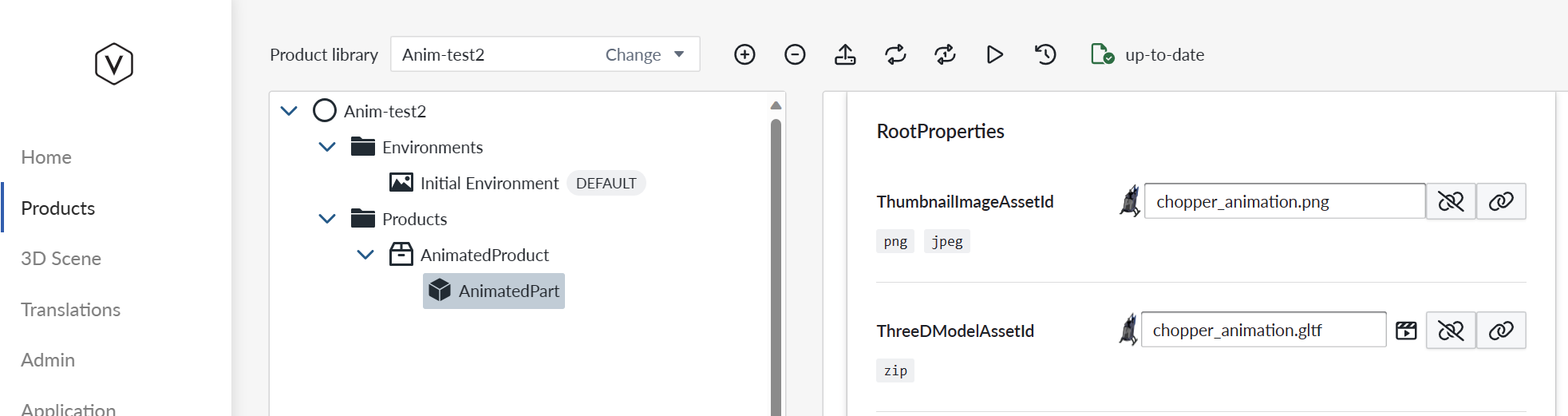
Image 1. Part has animation, highlighted by clapper board play icon.
When animations are detected in the 3d model linked to the part, AnimationProperties propertyset gets added automatically to the part.
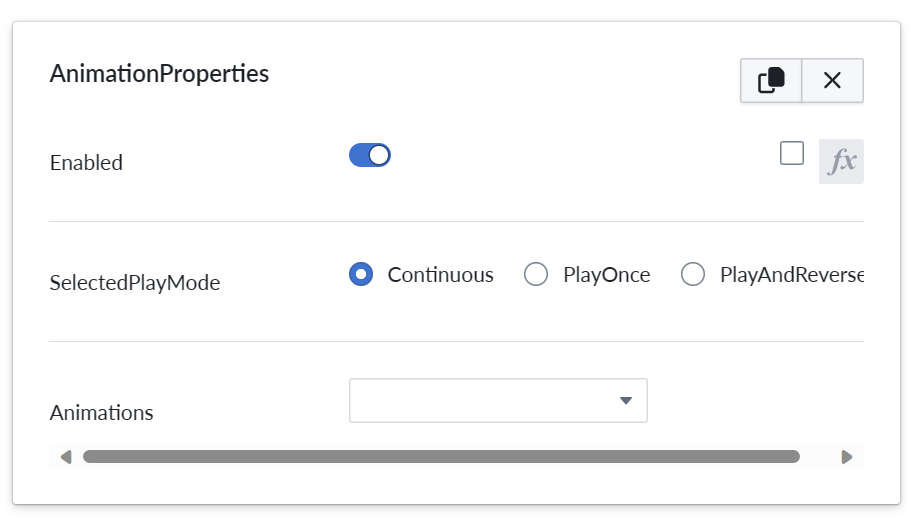
Image 2. Part gets AnimationProperties propertyset added automatically
Animation propertyset allows configuring if the animation is enabled, play mode to use. Additionally one can select which animation from possibly several animations within the 3D model to use. This is selected with the Animations dropdown.
In gif below, the animation mode has been onfigured to mode PlayAndReverse. In Planner (3D view) there is again the same clapper board play icon that allows playing the animation. In play and reverse mode the single animation can be played in two steps. First to play it forward on the second click play it in reverse to the original state. Observe how the door opens on first click and then closes on the second click. Additionally the hellicopter rotor spins to opposite directions on each click.
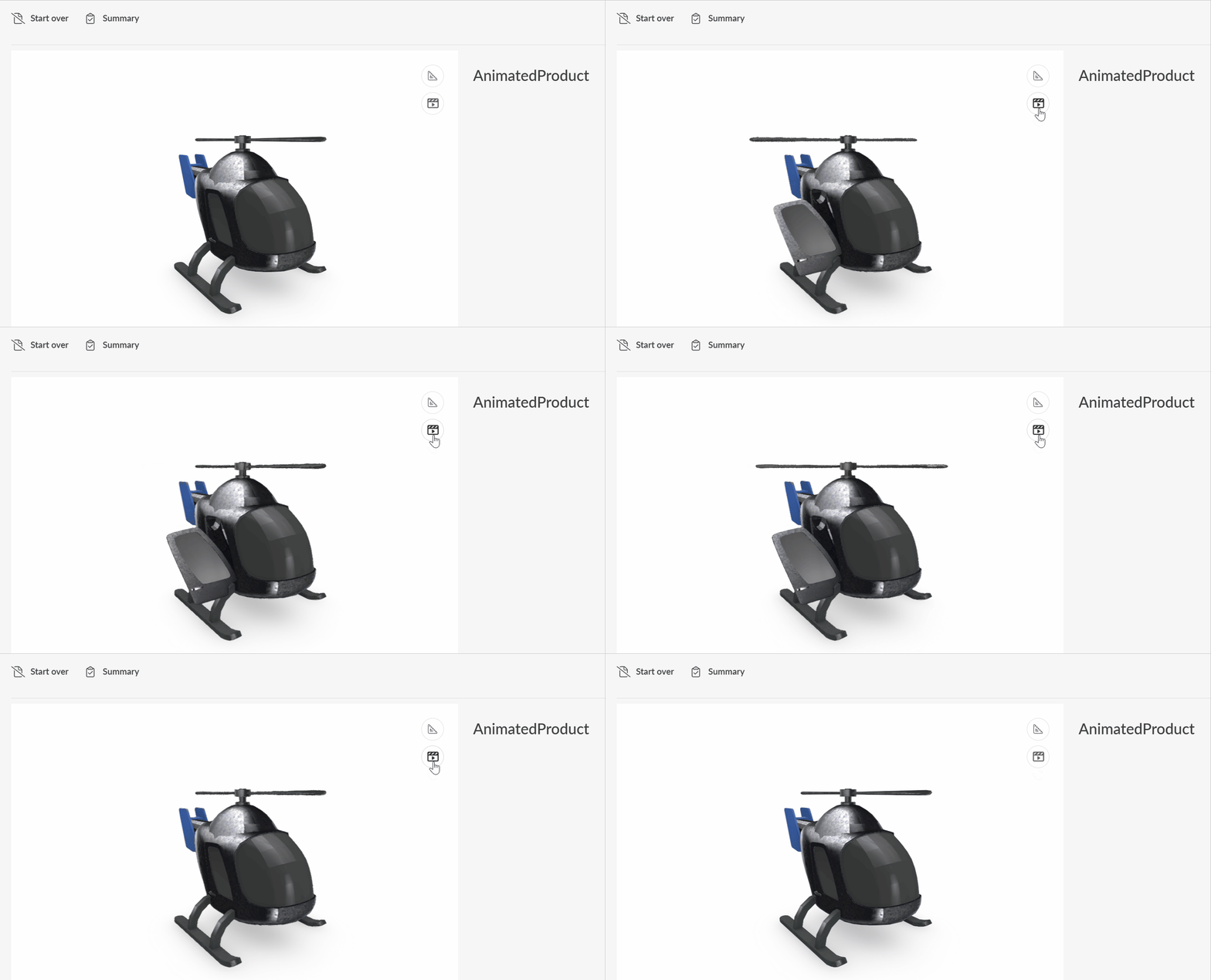
Image 3. Animation with PlayAndReverse play mode.
See more on configuring animations in AnimationProperties propertyset documentation.